

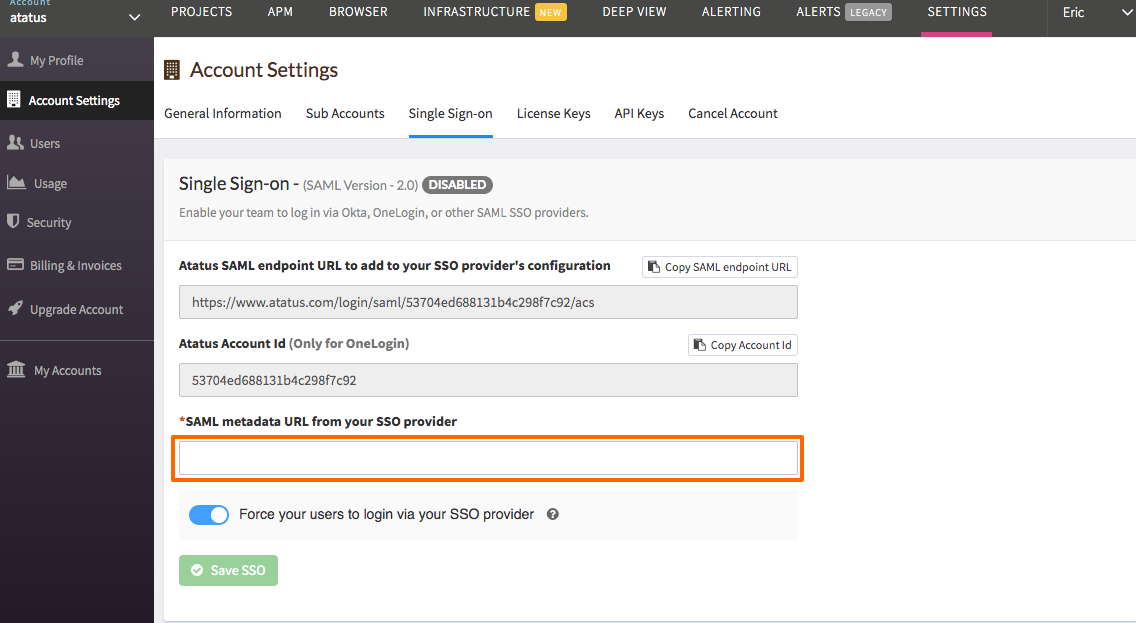
- In order to get the SAML metadata URL, login to OneLogin and click on the Administration tab on the top-right corner.
- Click on the Apps drop-down list and choose the Add Apps option.
- Search for the Atatus application and click on the Atatus SAML2.0 application.
-
Once you add it, click on the Configuration tab.
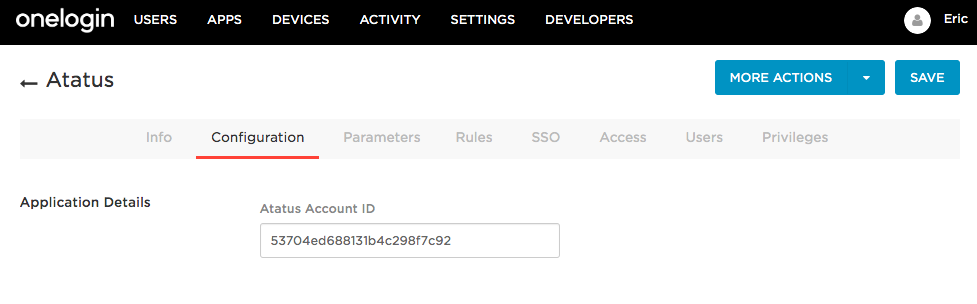
- Copy the Atatus Account ID from Atatus Settings » Account Settings » Single sign-on tab and paste it into the Atatus Account ID text box in OneLogin.
-
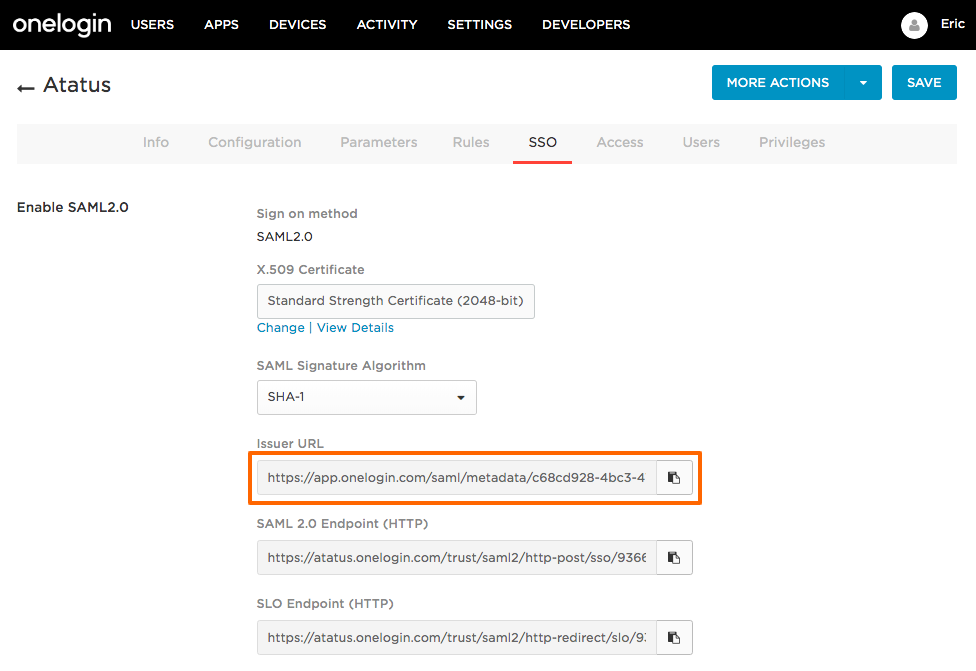
Next, click on the SSO tab and copy the Issuer URL and paste it into the SAML metadata URL from your SSO provider text box in Atatus.
- Click on the Save SSO button in Atatus.